








Data Warehouse troubleshooting
Contents
This page covers troubleshooting for Data Warehouse. For setup, see the installation guides.
Have a question? Ask PostHog AI
How can I see why my syncs are failing?
From the source page, click the source that's failing, scroll over to the Status column and hover over the error message.
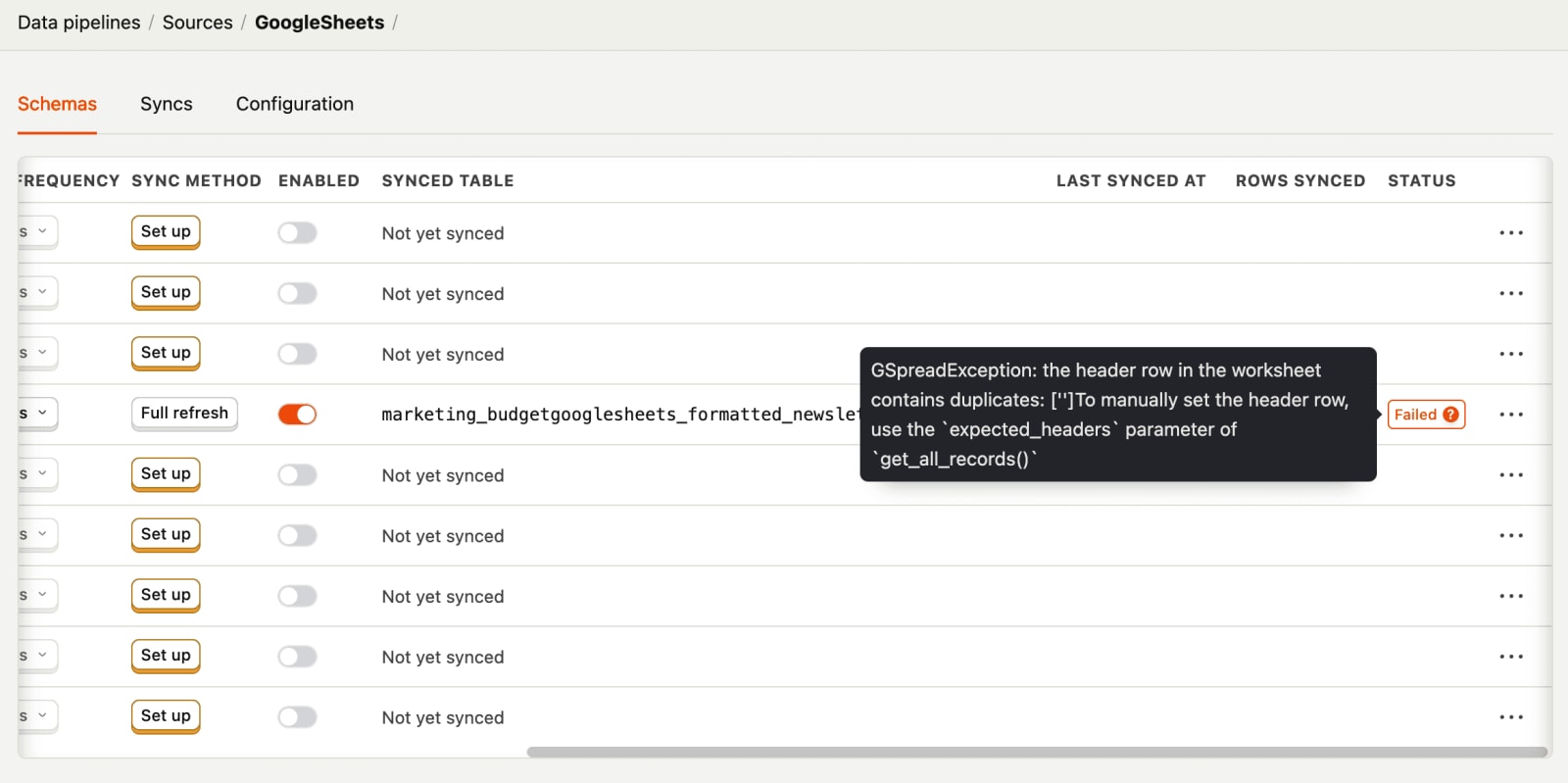
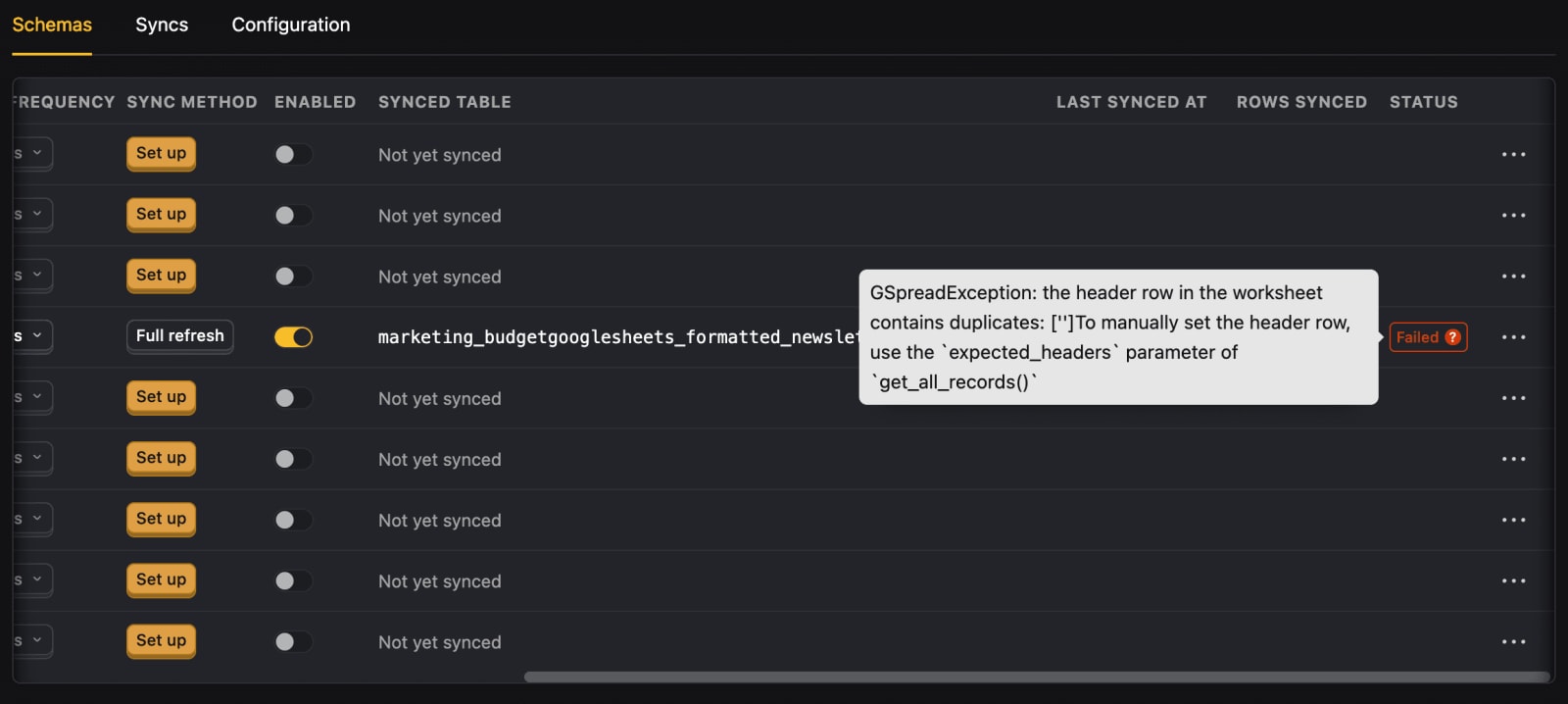
You can also click the Syncs tab and expand any failed sync to see all the logs.
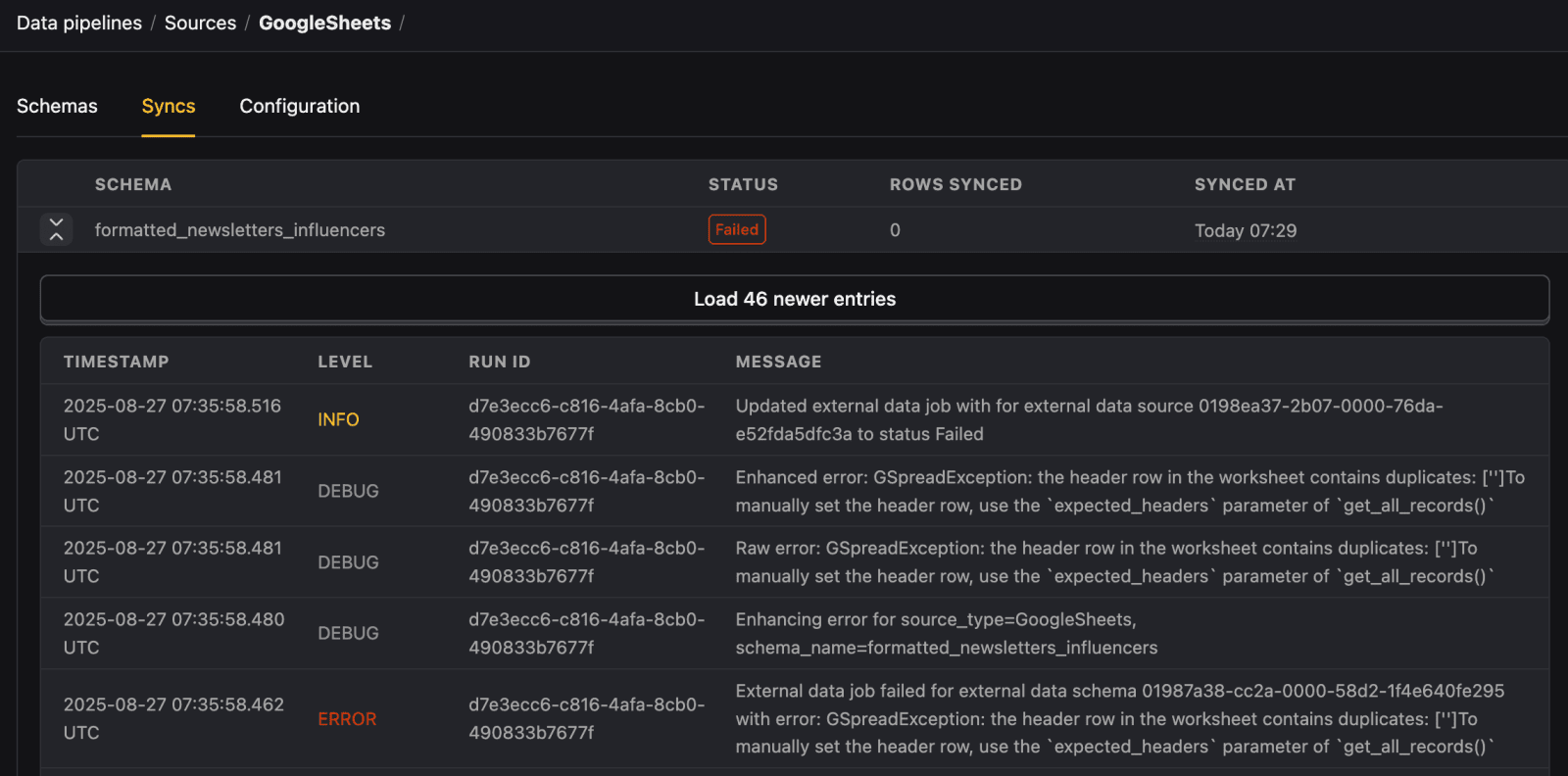
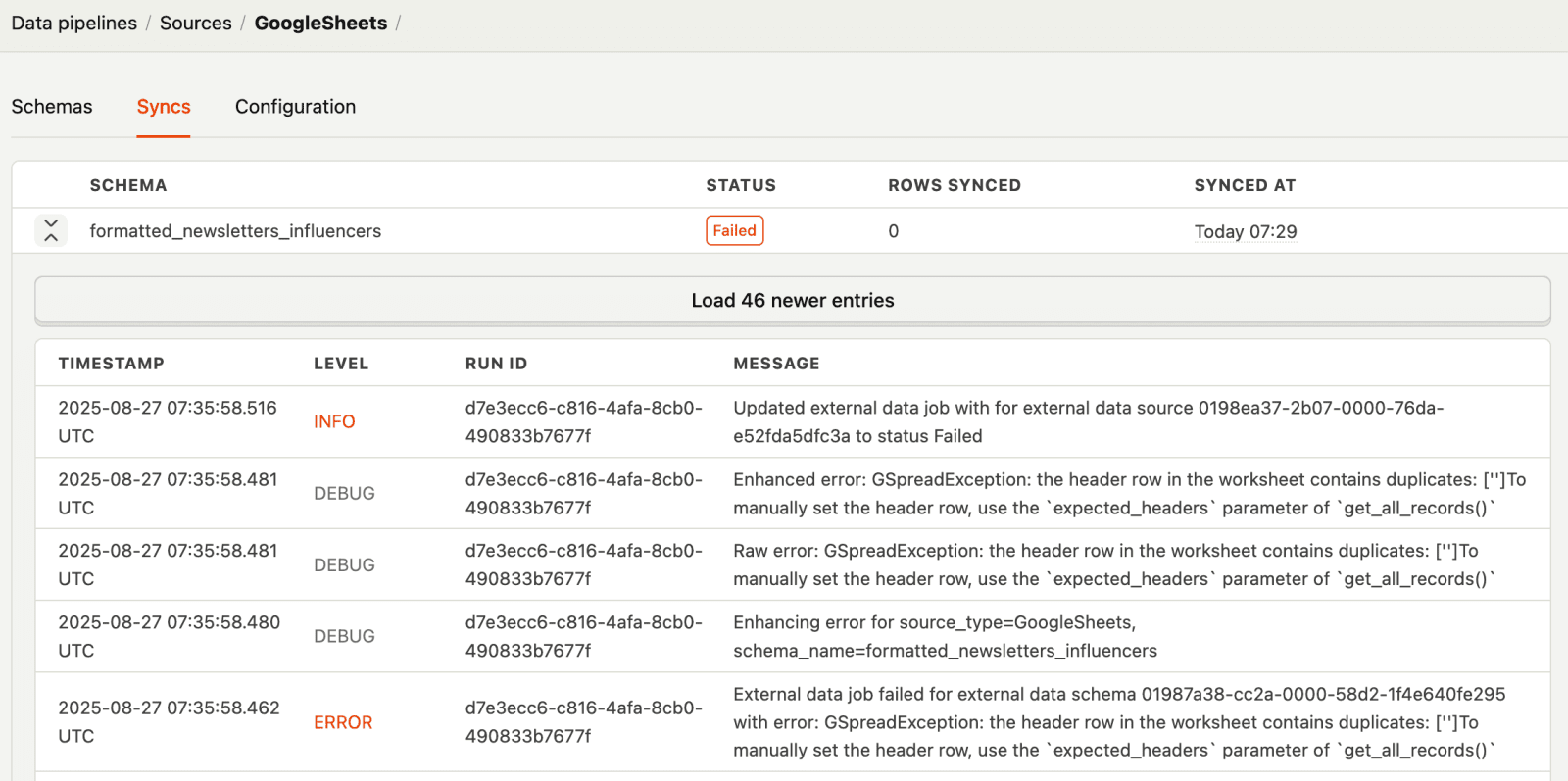
Why is "Pull new schemas" not finding any tables?
When you click Pull new schemas on an external data source (Postgres, MySQL, Redshift, etc.) and see a warning that no tables were found, this typically means:
- Missing SELECT permissions - The database user configured for the source doesn't have SELECT access to the target schema.
- Incorrect configuration - The schema name, credentials, or connection details in your source settings are wrong.
To fix this, check that your database user has SELECT permissions on the target schema and its tables, and verify that your source credentials and configuration are correct.
Why does "Pull new schemas" show "no schema changes"?
If you click Pull new schemas and see a success message saying there are no schema changes, this means the connection to your source is working correctly and all tables in the source schema are already being tracked.
This is expected behavior when your source configuration is up to date. New tables only appear if they've been added to the source database since your last refresh.
Why am I seeing an error when pulling schemas?
When Pull new schemas fails, the error message shows the specific underlying cause instead of a generic failure message. Common errors include:
- Authentication failures - Invalid credentials or expired passwords.
- Connection errors - Network issues, firewall rules, or the database server being unreachable.
- Permission denied - The user lacks access to the specified schema or database.
Use the error details in the toast notification to diagnose and fix the issue in your database configuration.
Why is my BigQuery sync failing with credential errors?
If your BigQuery sync fails with a message like "Your BigQuery service account credentials were rejected by Google," it means Google's token endpoint rejected the service account grant. This is a non-retryable error – PostHog stops the sync instead of retrying indefinitely.
This happens when:
- The service account's private key was rotated or revoked – Google returns an
Invalid JWT Signatureerror. - The service account was deleted – Google returns an
account not founderror.
To fix this:
- Generate a new JSON key file for your service account in the Google Cloud Console under IAM & Admin > Service Accounts.
- In PostHog, go to Data pipelines > Sources and select your BigQuery source.
- Upload the new Google Cloud JSON key file.
- Re-run the sync.
Why is my Stripe sync failing with an account access error?
If your Stripe sync fails with a message like "does not have access to account," it means your API key isn't authorized for the configured Stripe account, or your OAuth application access has been revoked. This is a non-retryable error – PostHog stops the sync instead of retrying indefinitely.
This happens when:
- The Account ID is misconfigured – You've specified an Account ID in your source settings, but your API key isn't authorized for that account (or you're using a non-Connect key with an Account ID).
- OAuth access was revoked – If you connected via OAuth, the application's access to your Stripe account may have been revoked.
To fix this:
- In PostHog, go to Data pipelines > Sources and select your Stripe source.
- If you're using a restricted API key:
- Remove the Account id field if your key belongs directly to the account you're syncing. Account ID is only needed for Stripe Connect platform accounts.
- Or verify the Account ID matches the account your key is authorized for.
- If you connected via OAuth, reconnect your Stripe account by selecting the OAuth authentication method and authorizing PostHog again.
- Re-run the sync.
Why is my Microsoft SQL Server sync failing with 'Invalid object name'?
If your Microsoft SQL Server sync fails with a message containing "Invalid object name," it means the database couldn't find an object (table or view) referenced in the query. This is a non-retryable error – PostHog stops the sync instead of retrying indefinitely.
This happens when:
- A table or view was dropped or renamed – The object you're syncing no longer exists.
- A view references a missing object – The view's underlying query references a table or another view that was deleted or renamed.
- Cross-database permission issues – The connection user can't access an object in another database that a view depends on.
To fix this:
- Check that all tables and views you're syncing still exist in your database.
- If you're syncing views, verify that all objects referenced in the view definitions are accessible.
- Ensure your connection user has SELECT permissions on all required objects, including cross-database dependencies.
- In PostHog, go to Data pipelines > Sources and re-sync after fixing the issue.
Why is my Shopify sync failing with "Payment Required"?
If your Shopify sync fails with a 402 Client Error: Payment Required message, it means your Shopify store is frozen due to an unpaid bill. Shopify's Admin API returns this error when the store owner has an outstanding balance.
This is a non-retryable error – PostHog stops the sync instead of retrying indefinitely because nothing on PostHog's side can recover from this state.
To fix this:
- Log into your Shopify admin and settle any outstanding balance to unfreeze your store.
- Once your store is active again, re-run the sync from Data pipelines > Sources in PostHog.
How do I speed up my SQL queries?
- Reduce the date range you're querying.
- Add more specific filters with
WHEREclauses. - Use materialized views.
We have other suggestions in our product analytics docs.
How do I run partial SQL queries?
If you want to run a part of your query in the SQL editor, highlight the part you want to run and hit CMD + Enter (Mac) or CTRL + Enter (Windows).
This is useful if you have a complex query and you want to test parts of it without running the whole query.


Why is my CSV data not parsing correctly?
If your CSV data appears garbled, has missing columns, or shows unexpected characters, it may be due to incorrect quote handling settings.
When linking a CSV file, PostHog provides a CSV quote handling option with two modes:
- RFC 4180 double quotes - Use this when your CSV uses standard double-quote escaping (e.g.,
"Hello ""World"""becomesHello "World") - Literal quotes - Use this when quotes in your data should be treated as regular characters (default)
To fix parsing issues, try recreating the table with the other quote handling option selected.
Why am I getting "Some files in the bucket are archived"?
This error occurs when files in your S3 bucket are stored in S3 Glacier or S3 Intelligent-Tiering archive storage classes. These storage classes are designed for long-term archival and cannot be accessed directly.
To resolve this:
- Restore the files to Standard storage class in AWS S3.
- Or narrow your URL pattern to exclude the archived files.